Chart Cart
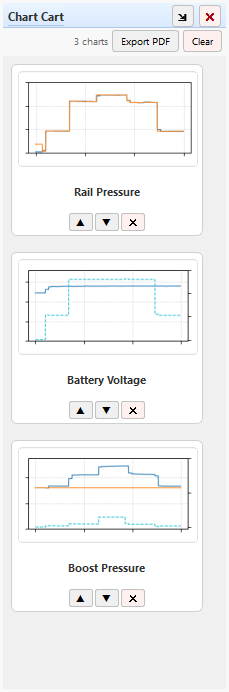
The Chart Cart is a collection tray for charts. Build a chart on the main
canvas – a Quick Chart, a My Chart, or a custom PID selection – add it to the cart,
then keep going. When you're done, export every chart in the cart to a single multi-page PDF
in one click, complete with chain-of-custody metadata.
The cart lives in a dockable panel on the right side of the main window (tabbed with
the Log Console by default). Each chart you add appears as a small card with a live
thumbnail, a title, and controls to reorder or remove it.
Typical use: capture several charts while working through the seven-step diagnostic
process, then hand a customer or service writer one PDF that documents everything you
looked at.
Adding a Chart to the Cart
Build any chart on the main canvas – a Quick Chart, a My Chart, or a custom PID
selection – then add it using any of these:
| Method | Details |
|---|
| Cart icon on the chart toolbar |
Click the shopping-cart button in the chart's own toolbar. See
Chart Controls for the full toolbar
layout. |
| Menu |
Chart → Add to Chart Cart |
| Keyboard shortcut |
Ctrl + Shift + C – see
Keyboard Shortcuts |
Each add drops a full copy of the current chart – its PIDs, axis ranges, and chart
type – into the cart. Later changes on the canvas don't affect charts already in the
cart; each card is an independent snapshot.
Tip: Zooming, panning, or typing custom Min/Max values into the axis range
boxes before you add a chart to the cart locks that view in – the cart entry (and any
PDF made from it) keeps the exact range you were looking at instead of auto-scaling. See
Axis Range Controls.
The Chart Cart Panel
Across the top of the panel:
| Control | Description |
|---|
| N charts |
Running count of how many charts are currently in the cart. |
| Export PDF |
Exports every chart in the cart to a single multi-page PDF. See
Exporting to PDF below. |
| Clear |
Removes every chart from the cart at once. Asks for confirmation first, since it
can't be undone. |
Below that, each chart is shown as its own card:
- Thumbnail – a small live preview of the chart, redrawn from its
saved PIDs and axis settings.
- Title – the chart's title, wrapping to up to two lines.
- ▲ / ▼ (Move Up / Move Down) – reorder the chart within
the cart. Order in the panel is the order charts appear in the exported PDF.
- ✕ (Remove) – removes just that one chart from the cart.
The panel automatically re-flows cards into more or fewer columns as you resize or float it,
and scrolls vertically once you have more charts than fit on screen.
Editing a Chart Already in the Cart
Double-click any card to load that chart back onto the main canvas for
editing – its PIDs are restored to the PID panel and its axis ranges to the toolbar
controls, exactly as they were when it was added.
While you're editing a cart chart this way, the cart button on the chart toolbar switches
from Add to Cart to Save changes to this cart chart (its tooltip updates to
match). Clicking it now overwrites that same card in place instead of adding a new one.
Note: You're returned to normal Add to Cart mode automatically
the moment you load a new snapshot, click a Quick Chart, or clear all selected PIDs –
there's no separate "cancel edit" step to remember.
Exporting to PDF
Click Export PDF and choose a save location. Snapshot Decoder renders one
page per cart chart, in the order shown in the panel, at 11×8.5" landscape. Every page
includes:
- The chart itself, redrawn at full print resolution (not just the small thumbnail)
- Chain-of-custody metadata – file name, date/time, and engine hours, when available
- A Snapshot Decoder version watermark
This is the same metadata footer used by the single-chart Save as PDF export
on the chart toolbar – see Chart Controls –
but combined into one file covering every chart you collected.
Managing the Panel Itself
| Control | Description |
|---|
View → Chart Cart |
Toggles the Chart Cart dock's visibility from the main menu. |
| ↗ (title bar) |
Pops the panel out into its own floating window, or docks it back – the icon
flips to ↘ while floating. |
| ✕ (title bar) |
Closes the dock. Reopen it with View → Chart Cart. |
The Chart Cart is tabbed with the Log Console dock by default – drag either tab to
rearrange them, or drag the whole panel to a different edge of the window.
Cart Contents Are Not Recoverable
The cart only exists in memory for the current session – it isn't written to disk.
It's cleared whenever:
- You open a different snapshot file while one is already loaded
- You use
File → Close Snapshot
- You close Snapshot Decoder
Because of this, Snapshot Decoder always asks for confirmation before opening a new file or
closing the current one whenever a snapshot is loaded, warning that current charts and the
chart cart "cannot be saved." Export to PDF first if you want to keep what's in the cart.
Quick Tip: Use the Chart Cart to build a complete diagnostic record as you
work through the
Seven Step Diagnostic Process – add a
chart at each relevant step, then export one PDF that walks through your whole
investigation.